Unit 1 · Installing Python and Writing Your First Program
Installing Python and Writing Your First Program
Time to get hands-on. Let's install Python on your computer and write your very first line of code.
Introduction
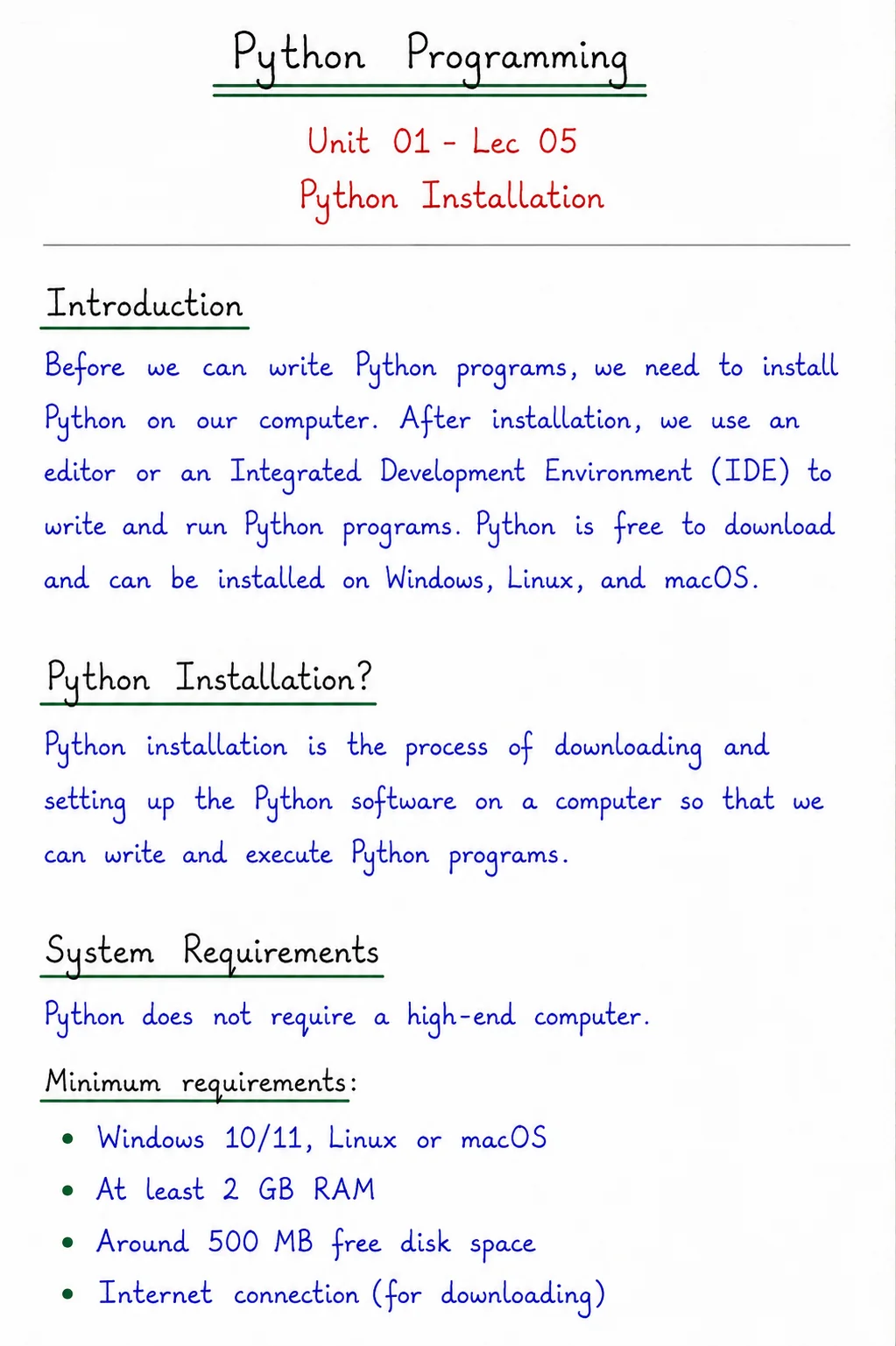
Before you can write and run Python programs, you need to install the Python interpreter on your computer, along with a text editor or IDE (Integrated Development Environment) to write your code in.
In this chapter, you'll learn how to download and install Python, verify the installation, choose an editor, and write your very first "Hello, World!" program.
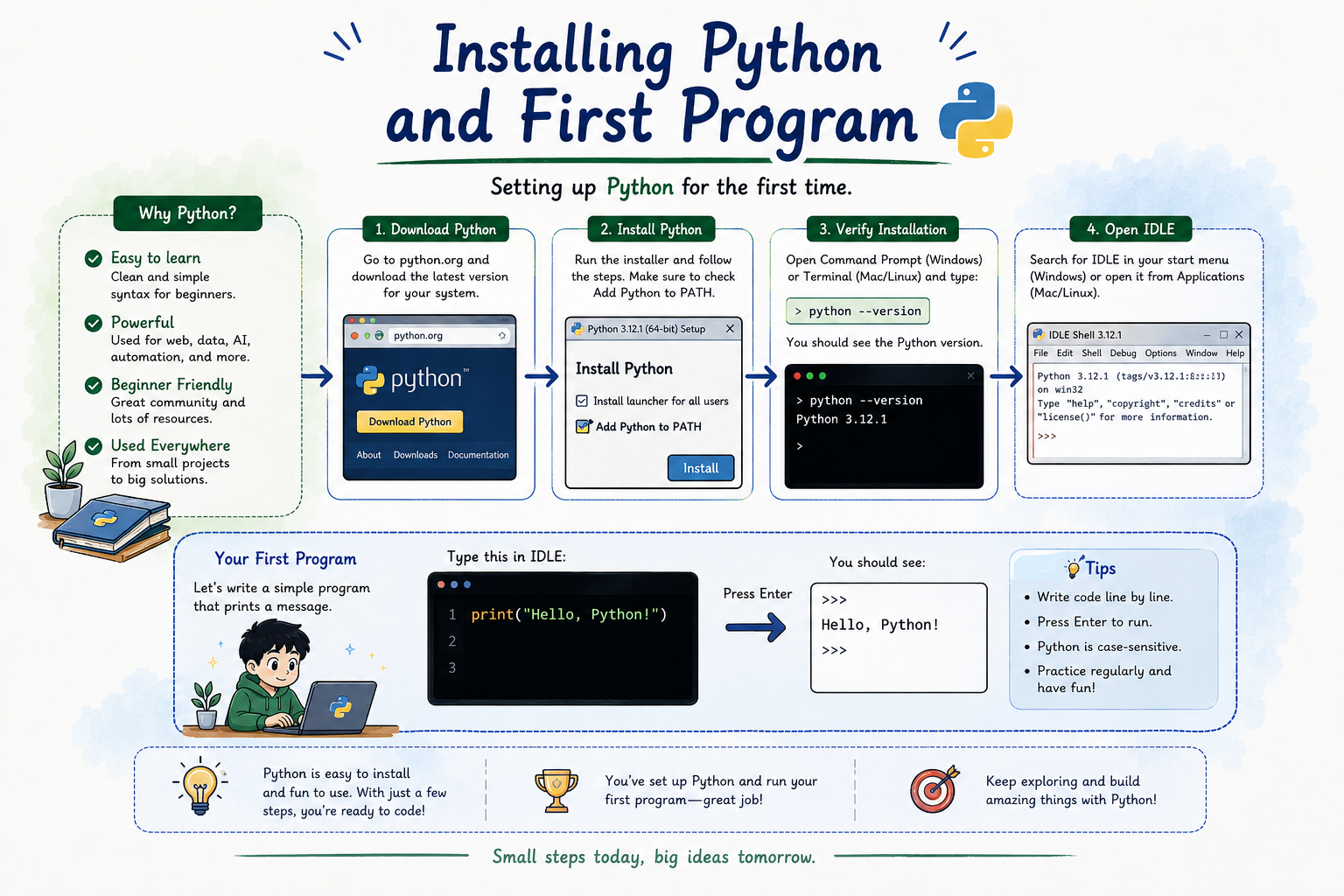
Table of Contents
Downloading Python
Python is free and open source, and can be downloaded from its official website: python.org.
Tip
Always download the latest stable version of Python 3.x — Python 2 is officially discontinued and should not be used for new projects.
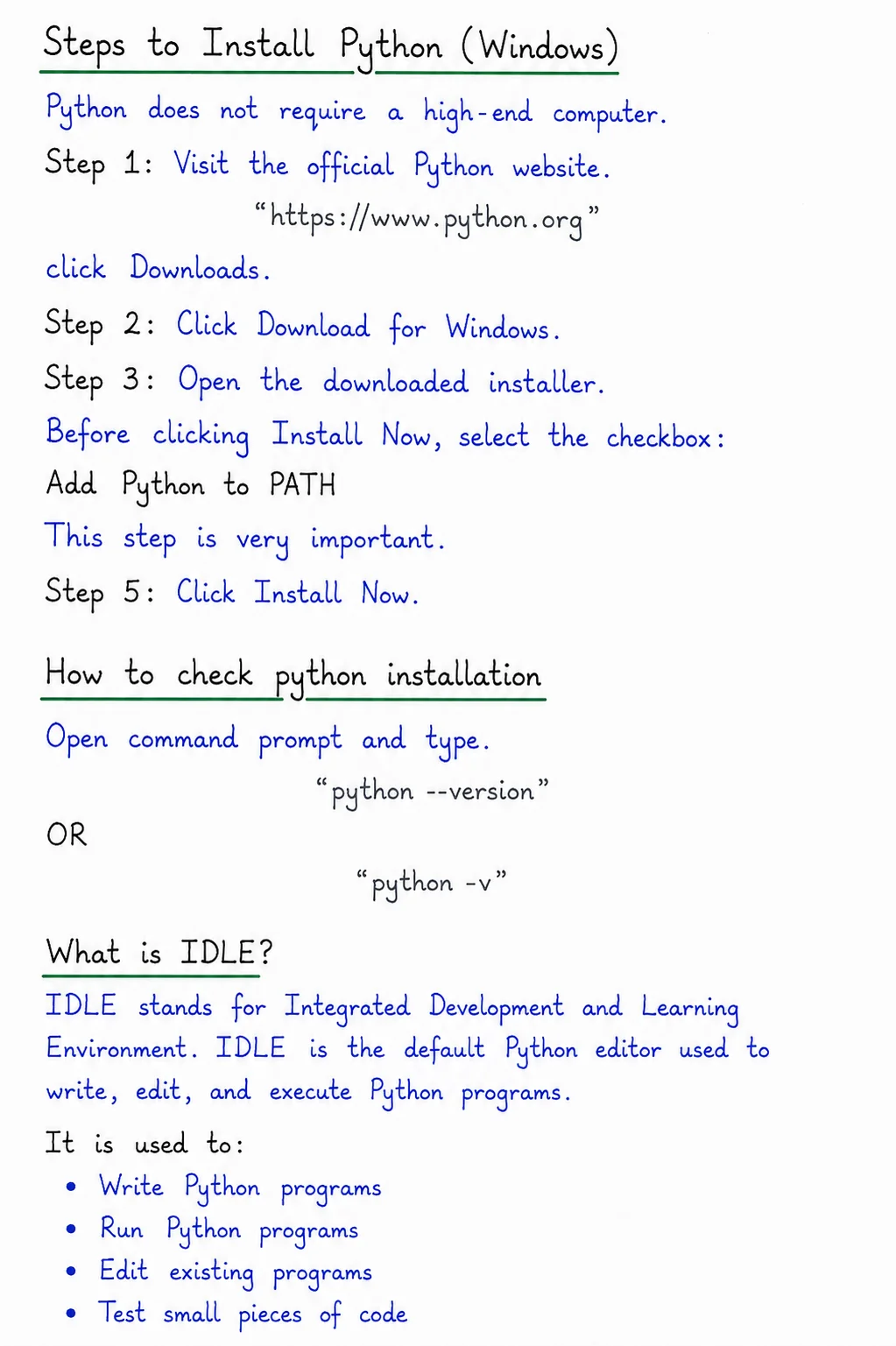
Installing Python (Windows)
- Go to python.org → Downloads and click the download button for your OS.
- Run the downloaded installer (
.exefile). - Important: Check the box that says
Add Python to PATHbefore clicking Install. - Click Install Now and wait for the setup to complete.
- Click Close once the installation finishes.
Warning: Forgetting to check "Add Python to PATH" is the most common installation mistake — it prevents you from running Python commands from the terminal.
Verifying the Installation
Open Command Prompt (Windows) or Terminal (macOS/Linux) and type:
python --version
If installed correctly, this will print the installed Python version, e.g.
Python 3.12.0.
Choosing an Editor / IDE
You can write Python code in any of the following tools:
IDLE
Comes bundled with Python. Simple and great for absolute beginners.
VS Code
A free, lightweight, and highly popular code editor with excellent Python support.
PyCharm
A full-featured IDE built specifically for professional Python development.
Jupyter Notebook
Popular for data science — runs code in interactive cells.
Writing Your First Program
Open your editor, create a new file named hello.py (Python
files always use the .py extension), and type:
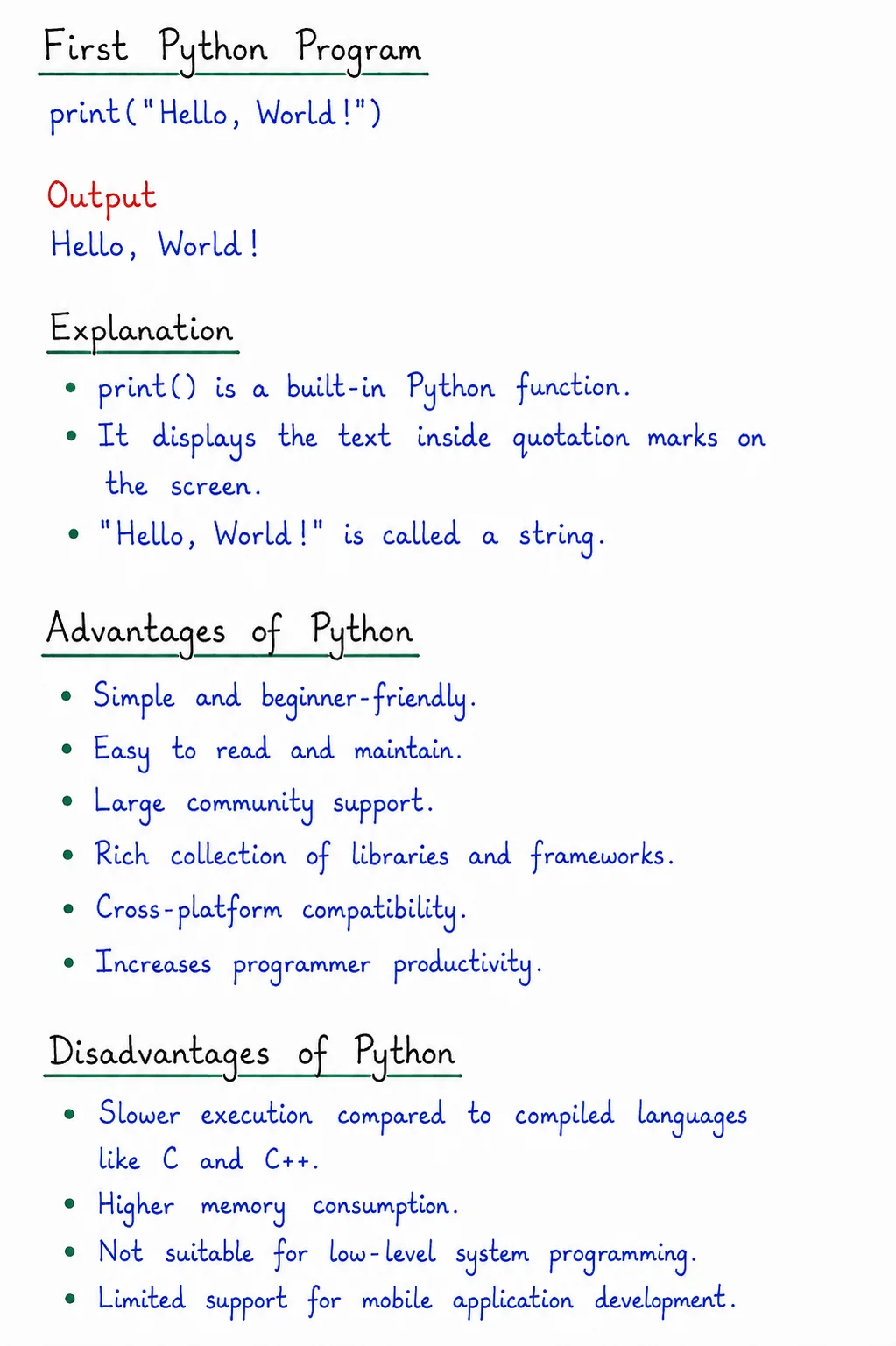
print("Hello, World!")
The print() function displays whatever text is placed
inside the parentheses onto the screen.
Running a Python Program
Open a terminal in the folder where your file is saved and run:
python hello.py
Output: Hello, World!
Common Beginner Mistakes
- Forgetting to check "Add Python to PATH" during installation.
- Saving the file without the
.pyextension. - Using mismatched quotes, e.g.
"Hello'. - Forgetting the parentheses in
print().
Quick Revision
| Concept | Key Point |
|---|---|
| Official Website | python.org |
| Check Version | python --version |
| File Extension | .py |
| Run a Program | python filename.py |
Summary
Setting up Python involves downloading the installer from python.org, checking "Add Python to PATH"
during installation, and choosing a code editor. Once installed, you can write a .py file with a single print() statement and run it from the terminal — officially
starting your Python programming journey.